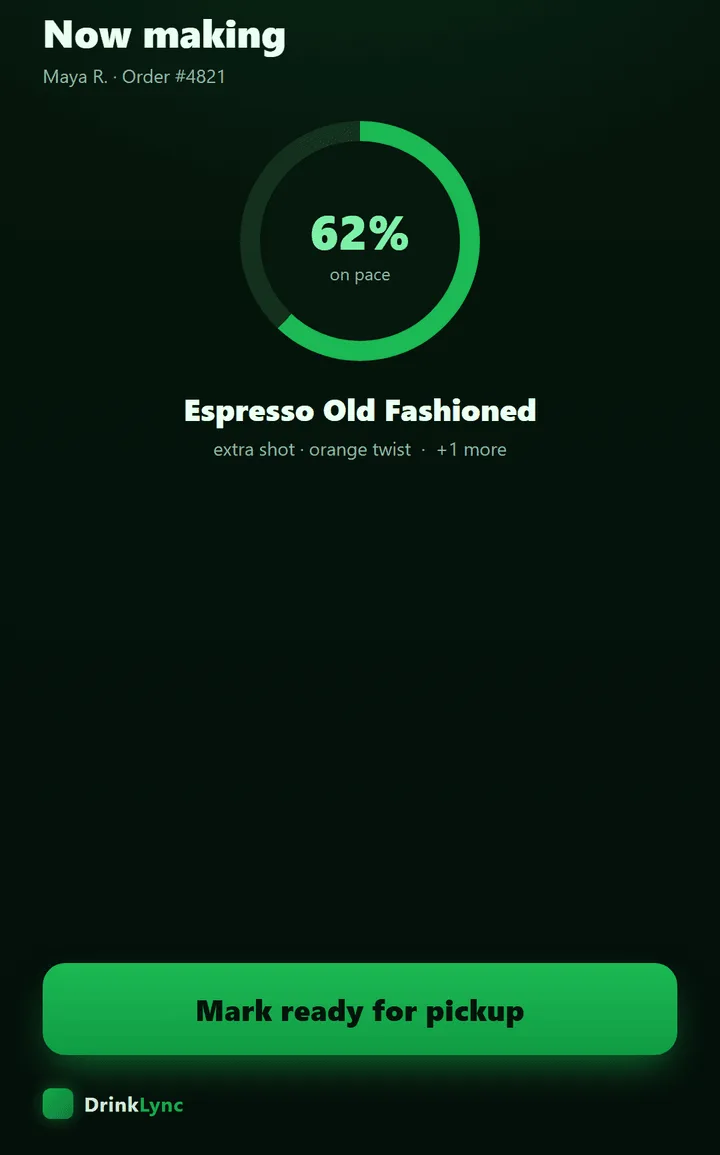
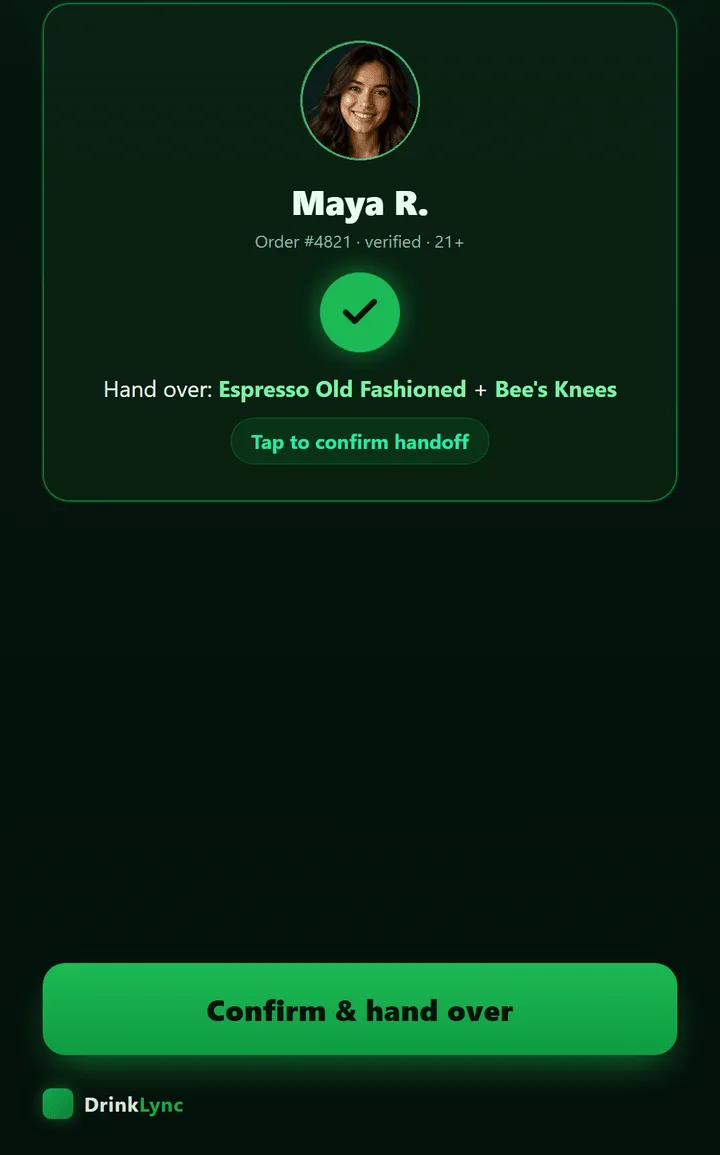
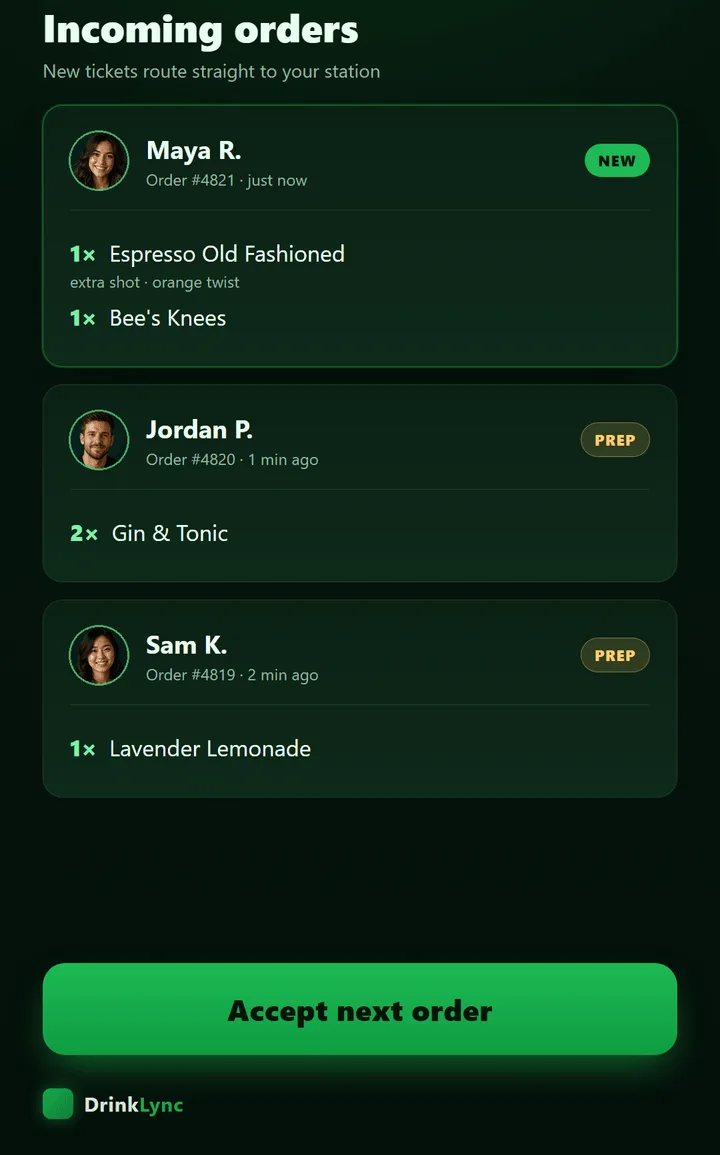
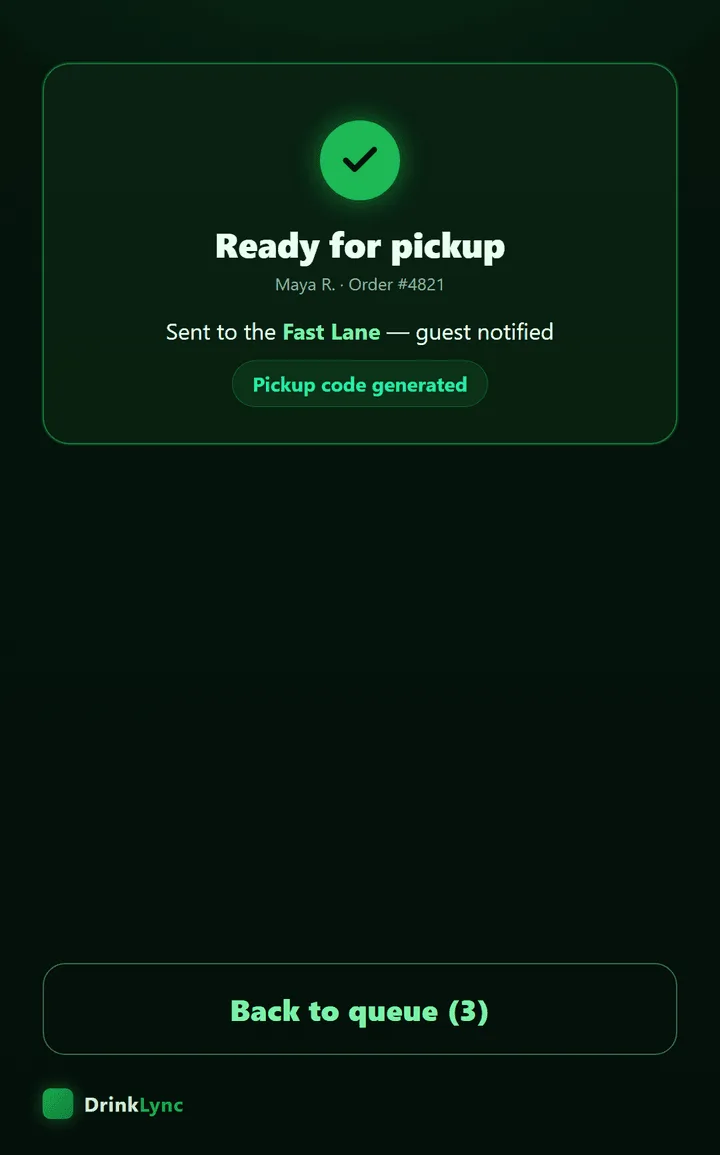
A few minutes per role. Watch each step, answer one question, move on. Then run practice orders in training mode before the first real shift.
Start here: the films
One shift at the bar and at pickup, and one night through a manager's eyes. Filmed in the real app on a demo bar, with a voice over.
For bartenders and pickup staff
Pairing the iPad, tickets, Accept and Ready, 86, the pickup check, the wrong person, a dead phone, and your tips.
Filmed in the real app on a demo bar · 2 min 12 s · with sound
For managers: one night, every screen
One round from the customer's phone to the bar, the pickup and your numbers the next morning, then setup and pricing.
Filmed in the real app on a demo bar · 7 min 33 s · with sound
Watch it first: courses by role
Real recordings of the real product, made on a practice venue with a test card, in the order to watch them. Each course ends with what you should be able to do, and a one-page quick card to print for the bar.
Bar owner
What a night on DrinkLync looks like from every screen, what your team does, and what you read the morning after.
1One order, start to finishOne order across every screen: who touches it, and what the system does at each step.Watch from 0:03 · 141 s
2A busy night at the railFour orders inside a minute: the queue sorts itself and pickup goes by name and code.Watch from 0:03 · 176 s
3A drink runs out mid-order (86)A drink runs out while a customer has it in the cart, and nobody pays for it.Watch from 0:03 · 82 s
4The morning after: what happened, and what to doLast night added up for you, and the one action worth taking.Watch from 0:03 · 130 s
5Setting up a station iPadA new station iPad bound to one bar and one role with a one-time code.Watch from 0:15 · 44 s
6From sign-up to go-liveFrom sign-up to go-live: menu, staff, iPads, readiness gates and a test order.Video coming
7Refunds, the READY rule, and refunding a tipRefund a whole order or just the tip, and what a refund does to an order already marked Ready.Watch from 0:06 · 54 s
You should now be able to
Follow one order from a customer's phone to the handoff and say who made it and who handed it off.
Explain to your team what happens when a drink is 86'd while a customer has it in the cart.
Open last night's recap and pick one thing to change this week.
Run the night from Live Orders and Action Center, keep the menu right, set up iPads, and read the morning after.
1The manager's live nightWho is on which bar, an order landing and moving on its own, and pausing a drink for every customer.Watch from 0:03 · 90 s
2One order, start to finishA paid order appears in Live Orders with no refresh.Watch from 0:48 · 7 s
3One order, start to finishThe closed order: made by, handed off by, tip, and tonight's numbers.Watch from 1:42 · 42 s
4Start of shift on the station iPadsWhat your bartender and gatekeeper see when they start a shift.Watch from 0:02 · 42 s
5Setting up a station iPadPair a new iPad: pick the bar and role, generate a code, see it claimed.Watch from 0:15 · 44 s
6The morning after: what happened, and what to doRecap, best sellers, staff pace, ratings, and the suggested next step.Watch from 0:03 · 130 s
7Pickup problems: wrong person, dead phone, no-showWrong person, dead phone and no-shows at pickup.Watch from 0:16 · 38 s
8Refunds, the READY rule, and refunding a tipRefund everything or just the tip, from the order, with a confirm before any refund goes out.Watch from 0:06 · 54 s
You should now be able to
Find any open order in Live Orders and say which bar and which stage it is at.
86 a drink for one bar or the whole venue, and bring it back.
Pair a station iPad to a bar and a role.
Read last night's Nightly Recap and name the best seller and the busiest bartender.
Run three practice orders in Training Mode before a new hire's first shift.
Recordings of the real app on a demo bar, one scenario each: a real order, a busy night, an 86, the next morning. Muted with captions on.
One order, start to finish
One real order followed across every screen: the guest orders with the flavor picker and card on file, Tony makes it, Louie scans the guest's QR and hands it off, the guest tips and rates, and the manager sees it all land and counted.
Recorded in the real app · 2 min 25 s · muted, captions on
A guest's first order
The guest's side of one order, on their phone: find the bar, pick a flavor, pay with the card on file, watch it get made, show the QR, tip and rate.
Recorded in the real app · 1 min 39 s · muted, captions on
A busy night at the rail
Four guests order inside a minute. Tony's queue sorts itself and batches matching drinks, the Ready Wall fills, and Louie hands off by name and code while the manager watches the pace.
Recorded in the real app · 2 min 60 s · muted, captions on
A drink runs out mid-order (86)
Tony 86s the Moscow Mule from the bar iPad while a guest has one in the cart. The guest's app catches it before payment, the guest swaps, and nobody pays for a drink the bar can't make.
Recorded in the real app · 1 min 26 s · muted, captions on
Pickup problems: wrong person, dead phone, no-show
What Louie does when pickup goes sideways: the scan sheet shows whose order it is, Problem flags it without releasing the drink, lookup by name covers a dead phone, and Never picked up lists the no-shows.
Recorded in the real app · 55 s · muted, captions on
Refunds, the READY rule, and refunding a tip
The manager refunds an order with one Refund everything button and an Are you sure? confirm; a refund at READY is allowed and cancels the order, so pickup will not release the drink; a tip is refunded on its own.
Recorded in the real app · 60 s · muted, captions on
From sign-up to go-live
A new manager registers, enters the venue once, sets floors and bars, builds the menu (spirits on hand, drinks, prices, photos), invites staff, assigns iPads, clears the readiness gates and runs a test order.
Recorded in the real app · 41 s · muted, captions on
Setting up a station iPad
HQ sees every station iPad and whether it is online; the manager makes a one-time code for a bar and a role; the new iPad enters it and opens straight to that venue's staff sign-in.
Recorded in the real app · 59 s · muted, captions on
The morning after: what happened, and what to do
Last night's numbers waiting in the Action Center, the Nightly Recap against last week, best sellers, staff pace, guest ratings, and the one action worth taking.
Recorded in the real app · 2 min 14 s · muted, captions on
The manager's live night
Live Orders on a working night: who is on which bar, an order landing and moving through Accepted and Ready on its own, and the manager pausing a drink for every guest in one tap.
Recorded in the real app · 1 min 34 s · muted, captions on
Start of shift on the station iPads
Tony and Louie start their shifts on the bar's paired iPads: welcome back, Start shift, pick the bar, and the screens they work from all night, including Tony's tips.
Recorded in the real app · 49 s · muted, captions on
Order history and one-tap re-order
The guest's past orders with who made and handed off each one, the receipt, and Order Again putting the same drinks and flavors straight back in the cart.
Recorded in the real app · 24 s · muted, captions on
DrinkLync for bar managers
The whole product for a bar manager deciding whether to sign up: one real order followed through every screen, what happens when something goes wrong, the morning after, what you get, and how setup works. One screen at a time.
Recorded in the real app · 7 min 33 s · muted, captions on
Training: your shift at the bar and at pickup
For bartenders and pickup staff: pairing and signing in, starting a shift, tickets, Accept and Ready, batching, 86 and restore, scanning and handing off, the wrong person, a dead phone, no-shows, and tips at the end of the shift.
Recorded in the real app · 2 min 12 s · muted, captions on
24 more flows are being recorded
A round for the group
One guest orders a round: four house drinks, a choice and a special request. Tony sees one typed ticket with the note; Louie checks every item at handoff.
Recording on the way. What it shows:
Two Sangrias and a red wine
A Sangria, ice on the side
One payment for the whole round
Tony sees the round on one ticket
Made together, marked Ready once
One QR for the round
Louie scans and checks every item
Handed off
A Broadway rush at one rail
Saturday on Lower Broadway: a dozen orders hit one rail inside a few minutes. Tony works them typed and oldest first, Louie hands them off by name and code, and the manager watches pace hold under the wait target.
Recording on the way. What it shows:
A dozen orders hit one rail
The manager watches pace
Tony works the queue
Louie's Ready Wall fills
Hand off, next, hand off
The rush clears inside target
Game day at an arena stand
A fan orders from their seat section at a stadium stand, the stand bartender makes it, and pickup works the same as at a bar.
Recording on the way. What it shows:
Tonight's event, the stands near my section
Order from the stand
The stand's iPad gets it
Ready: walk up and show the code
Handed off at the stand
A brand's drink special, live at a venue
A brand books a featured spot, the venue approves it, and the special shows on the guest menu that night, reported back to the brand without billing per click.
Recording on the way. What it shows:
The brand books a featured spot
The venue approves it
The guest sees the feature on the menu
The brand sees what it reached
A bartender's first shift
A new bartender reads the quick-start guide, runs a practice drill in training, takes their first real ticket and checks their tips.
Recording on the way. What it shows:
Welcome on the station iPad
The quick-start guide
A practice drill in training
The first real ticket
Their tips, by night
The owner's monthly value recap
At month end the owner opens the value dashboard: orders, sales, time saved at the rail, and what DrinkLync cost against what it made.
Recording on the way. What it shows:
The month at a glance
Time saved at the rail
What DrinkLync cost against what it made
The monthly report
A guest's account: card, profile and preferences
The guest checks their card on file, profile and preferences, and sets notifications and security, all from Account.
Recording on the way. What it shows:
Account
The card on file
Profile
Drink preferences
Notifications and security
Send a drink to a friend
A guest buys a friend a drink at the bar they are at; the friend claims it on their own phone and picks it up like any order.
Recording on the way. What it shows:
Send a drink to a friend
Share the gift link
The friend claims it
Picked up like any order
Building and fixing the menu
The manager browses the menu bar by bar, adds a drink from the catalog, picks its photos and options, and sees it on the guest menu.
Recording on the way. What it shows:
The menu, bar by bar
Add a drink from the catalog
Pick the photos
Flavors and options
It's on the guest menu
The team: invites, schedule, time clock and tips
The manager sees the team, invites a new staffer, checks the schedule and who is clocked in, and reviews the tip pool.
Recording on the way. What it shows:
The team
Invite a new bartender
The schedule
Time clock
Tips and the tip pool
Specials, happy hour and promo codes
The manager starts a happy hour from the quiet hours report, looks at promo codes, and the guest sees the special on the menu.
Recording on the way. What it shows:
Specials
Start a happy hour
Promo codes
The guest sees the special
Reports and drink performance
The manager reads drink performance, staff performance and pickup throughput, and exports a report.
Recording on the way. What it shows:
Insights
Drink performance
Staff performance
Pickup throughput
Export a report
An owner's portfolio and payouts
An owner with several venues sees each venue's numbers side by side, the finance view and the payouts Stripe sent.
Recording on the way. What it shows:
Every venue side by side
Finance
Payouts
The bartender's tools: recipes, prep and tips
Between rushes a bartender checks a recipe, the prep list for tonight, their tips and the shift summary.
Recording on the way. What it shows:
Recipes
Prep for tonight
My tips
End of shift
Finding a bar and planning a night
A guest browses bars near them, tonight's specials, a venue's floors and line status, and saves a favourite.
Recording on the way. What it shows:
Bars near me tonight
Tonight's specials
A venue's floors and line status
Save a favourite
Reserve rail seats
Stock, costs and ordering
The manager checks inventory and drink costs, sees what to reorder before the weekend, and raises a purchase order.
Recording on the way. What it shows:
Inventory
Drink costs
What to reorder
A purchase order
Guests, regulars and reservations
The manager looks up a regular, sees guest segments and lifetime value, the guest list and tonight's reservations and open tabs.
Recording on the way. What it shows:
A regular's profile
Guest segments and lifetime value
Guest list and reservations
Open tabs
Events, bookings and entertainment
The manager books an event, plans stands for it, sets the DJ rotation and reads the live vibe during the night.
Recording on the way. What it shows:
Events
Book an event
DJ rotation and music
Live vibe
Venue settings, billing and documents
The manager sets venue hours and branding, checks the DrinkLync bill, and keeps licences, insurance and documents in one vault.
Recording on the way. What it shows:
Venue settings
Branding
Billing
Licences and documents
Responsible service and safety
The manager reviews responsible-service flags, drink-safety reports, loss prevention and the crisis playbook.
Recording on the way. What it shows:
Responsible service
Drink safety reports
Loss prevention
The crisis playbook
Forecasts, pricing and Lync
The manager reads the forecast for the weekend, pricing insights and surge rules, and asks Lync a question about the bar.
Recording on the way. What it shows:
The weekend forecast
Pricing insights
Surge and throttle rules
Ask Lync
Staff dashboards, schedules and their year
A bartender and a gatekeeper check their own dashboard, schedule, reports and wrapped year from the station iPad.
Recording on the way. What it shows:
Tony's dashboard
His schedule
Louie's dashboard
His year, wrapped
Venue groups and an owner's team
An owner groups venues, sees staff across them and the group's inventory and year.
Recording on the way. What it shows:
Venue groups
Staff across venues
Group inventory
A customer signs up
A new customer creates an account, confirms their email, enters their birthday once (21+ checked at sign-up, never again at pickup), saves a card and lands on the bars near them.
Recording on the way. What it shows:
Create an account
Confirm the email
Birthday, once
Save a card
Bars near you
Bartender quick start
Guests order and pay on their phones. Their orders come to your iPad. You make the drinks and mark them ready, and the gatekeeper hands them to the guest.
Bartender: 0 of 8 modules done on this device.
Module 1
Sign in on the station iPad
Tap your name, then enter your PIN. The first time you sign in, the iPad asks you to set your own 6-digit PIN. Keep it to yourself: every order you touch is recorded under your name.
Sign in on the station iPad · recorded in the real app · 49 seconds · muted, captions on
Module 2
Pick your bar
Tap the bar you are working tonight. Only that bar's orders come to you. If you move bars later, open the three-dot menu at the top right and tap Change bar.
Pick your bar · recorded in the real app · 49 seconds · muted, captions on
Module 3
Watch the queue
New orders appear on their own. Each ticket shows the guest's first name, the drinks, and any special request. Tap a ticket to see the full build.
Watch the queue · recorded in the real app · 49 seconds · muted, captions on
Module 4
Accept the order
Tap Accept to claim it. The guest's phone now says their drink is being made, and no other bartender can take it.
Accept the order · recorded in the real app · 145 seconds · muted, captions on
Module 5
Make it, then tap Ready
Build the drinks, then tap Ready. The guest gets a pickup code and the order moves to the gatekeeper's Ready Wall. Tapped Ready too early? Open the ticket and tap Undo within 30 seconds.
Make it, then tap Ready · recorded in the real app · 145 seconds · muted, captions on
Module 6
Remake a drink
Spilled it or made it wrong? Open the ticket, tap Made it wrong, and pick a reason. A free replacement ticket goes into your queue.
Remake a drink Walkthrough video on the way. This is the real screen it shows.
Module 7
86 something that ran out
Tap the 86 button on the queue toolbar, then tap the drink. It comes off the guest menu for your bar. Tap it again to bring it back.
86 something that ran out · recorded in the real app · 86 seconds · muted, captions on
Module 8
See your tips
A tip shows on the ticket it came with. Your shift total is on My shift. At the end of the night, open the three-dot menu and tap End shift or Log out.
See your tips · recorded in the real app · 49 seconds · muted, captions on
Gatekeeper quick start
You hand finished drinks to the right guest. The guest shows a pickup QR code on their phone. You scan it, check the drinks, and hand them off.
Gatekeeper: 0 of 7 modules done on this device.
Module 1
Sign in and pick your pickup point
On the station iPad, tap your name and enter your PIN. Then choose the pickup point you are working today.
Sign in and pick your pickup point · recorded in the real app · 49 seconds · muted, captions on
Module 2
Watch the Ready Wall
Every order the bartenders have marked Ready shows here, with the guest's first name and drinks. Orders that wait too long move to Stale.
Watch the Ready Wall · recorded in the real app · 145 seconds · muted, captions on
Module 3
Scan the guest's code
When a guest walks up, tap Scan QR and point the camera at the QR code on their phone. You can also tap Hand off on the order's card on the wall.
Scan the customer's code · recorded in the real app · 145 seconds · muted, captions on
Module 4
Read the Code valid sheet
Code valid proves the order, not the person or their age. Guests enter their own birthday once, at sign-up; that is DrinkLync's only age check, and DrinkLync does not scan ID in the app. If age or identity is in doubt, pause the handoff and ask your manager.
Read the Code valid sheet Walkthrough video on the way. This is the real screen it shows.
Module 5
Check every item
Match the drinks on the tray against the list on the sheet, including any changes the guest asked for.
Check every item Walkthrough video on the way. This is the real screen it shows.
Module 6
Hand off
Give the guest their drinks and tap Hand off. The order is marked picked up and leaves the wall.
Hand off · recorded in the real app · 145 seconds · muted, captions on
Module 7
Flag a problem
Something wrong? Tap Problem and pick Missing item, Wrong drink, or Customer mismatch. The order stays on the Ready Wall and the bartender and manager are alerted. If the screen says an alert was not confirmed, tell them in person.
Flag a problem · recorded in the real app · 55 seconds · muted, captions on
Manager quick start
Your guests order and pay on their phones, your bartenders make the drinks on a station iPad, and your gatekeeper hands them off. This is where you run all of it.
Manager: 0 of 8 modules done on this device.
Module 1
Start in Action Center
Action Center shows tonight as it happens: orders, what needs your attention, and the next thing worth doing. It is the first item under Operate in the menu.
Start in Action Center Walkthrough video on the way. This is the real screen it shows.
Module 2
Follow orders in Live Orders
Every open order, filtered by status or by bar. Tap an order to see its details. A refund starts from the order.
Follow orders in Live Orders · recorded in the real app · 94 seconds · muted, captions on
Module 3
Keep the menu right, and 86 what runs out
Add drinks with + New Item and change one with Edit. When something runs out, tap 86 the menu. Use Availability applies to for one bar or the whole venue. Your bartenders see the same 86 list.
Keep the menu right, and 86 what runs out · recorded in the real app · 94 seconds · muted, captions on
Module 4
Invite each staff member
Under Staff, tap Invite Staff for each person. Give each person a bar and a role and tap Save bar and role. Each staff member uses their own account and PIN; never share one venue sign-in. Reset PIN is there for anyone who forgets theirs.
Invite each staff member Walkthrough video on the way. This is the real screen it shows.
Module 5
Pair each station iPad
Under Devices, tap Pair a device (+ Pair another once you have one). Pick the bar and the role the iPad runs if you want to fix them, then tap Generate pairing code. On the iPad, open DrinkLync Staff, tap Set up this iPad, and scan the QR or type the code. Codes work once and expire in 10 minutes.
Pair each station iPad · recorded in the real app · 59 seconds · muted, captions on
Module 6
Get paid and set tips
Under Money, Get Paid shows whether your Stripe account can take payments and your real payouts. Guests pay your bar directly through your own Stripe account. The Tips tab is where you set how the tip pool is split.
Get paid and set tips Walkthrough video on the way. This is the real screen it shows.
Module 7
Read your numbers
Analytics shows how each night went, including sales by hour, with a Nightly Recap after each close. Craft Quality shows what guests and staff said about the drinks.
Read your numbers · recorded in the real app · 134 seconds · muted, captions on
Module 8
Train with practice orders
Under Staff, open Training Mode and tap Enter training mode. Every staff screen shows a TRAINING banner. Send 3 orders: they cost nothing and never count in your numbers. Your bartenders accept and ready them, your gatekeeper hands them off. Review physical ID checks at the door and how to pause a handoff when age or identity is in doubt. Tap Exit training mode when you are done.
Train with practice orders Walkthrough video on the way. This is the real screen it shows.